Get Started With T4 Quick Links
After gaining access to your Studio Site, follow the steps below to start using the content management system effectively:
When you have finished understanding the site structure, learn how to customize your website shell.
Important considerations before getting started
Logging in
- Always connect to the Mayo VPN before trying to log in.
- Bookmark the Site Structure link so you don't retype it each time.
- If login fails, check VPN first, then confirm T4 access, then contact support.
Navigating efficiently
- Match the page's live URL to the folder path in T4; it usually mirrors it exactly.
- Expand one folder level at a time instead of opening everything at once.
- Use page names and URLs together when you're not sure which folder to open.
Common pitfall
- Editing the wrong page because two pages have similar names — always confirm the URL before making changes.
Log in to T4
Logging in to TerminalFour (T4) relies on Mayo's single sign-on (SSO), which requires you to be using Mayo's VPN.
Note: If you are unable to access T4 through the link below, please reach out to the ESDE team by submitting a “TerminalFour (T4) Help Request” using this Workfront form.
T4 site structure
Once given access to TerminalFour (T4), it will be connected to Mayo's single sign-on (SSO) and you will automatically be logged in. Always use this link to access the T4 site structure:
https://cms.college.mayo.edu/terminalfour/page/site-structure
Navigating the T4 Site Structure
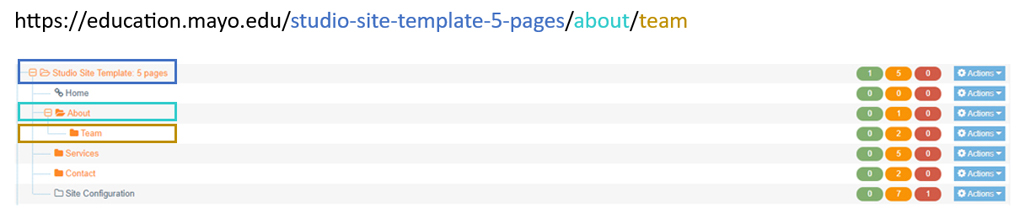
Each page on your "live" Studio Site website is represented by a folder in the T4 site structure. To find a specific page in the site structure, match the folder names to the URL on the live site. For instance, if you were wanting to make updates to (not real) Studio Site website https://education.mayo.edu/studio-site-template/about/team you would:
- Navigate to the Studio Site website folder (Studio Site Template: 5 pages for this example, shown in the screenshot below) in the T4 site structure.
- Click the + to the left of the folder name to expand.
- Then, navigate to and expand the parent page folder (About for this example).
- Finally, click on the name of the folder you'd like to update (Team for this example).
- Follow the instructions in the Managing Content section to make the needed updates to that page.